 MakeAReelExplore MakeAReel
 ✳ GOOD CONTENT IS ALREADY IN YOUR CAMERA ROLL.
You already have the content.
Let’s make the reel.
Turn your photos and video clips into social reels in minutes. Choose a Quick Style you like, replace the media, and make it yours. No design skills required.


YOUR MEDIA, YOUR STARTING POINT.
Start with Google Photos or Pexels
Use your photos and clips, or discover more on Pexels.
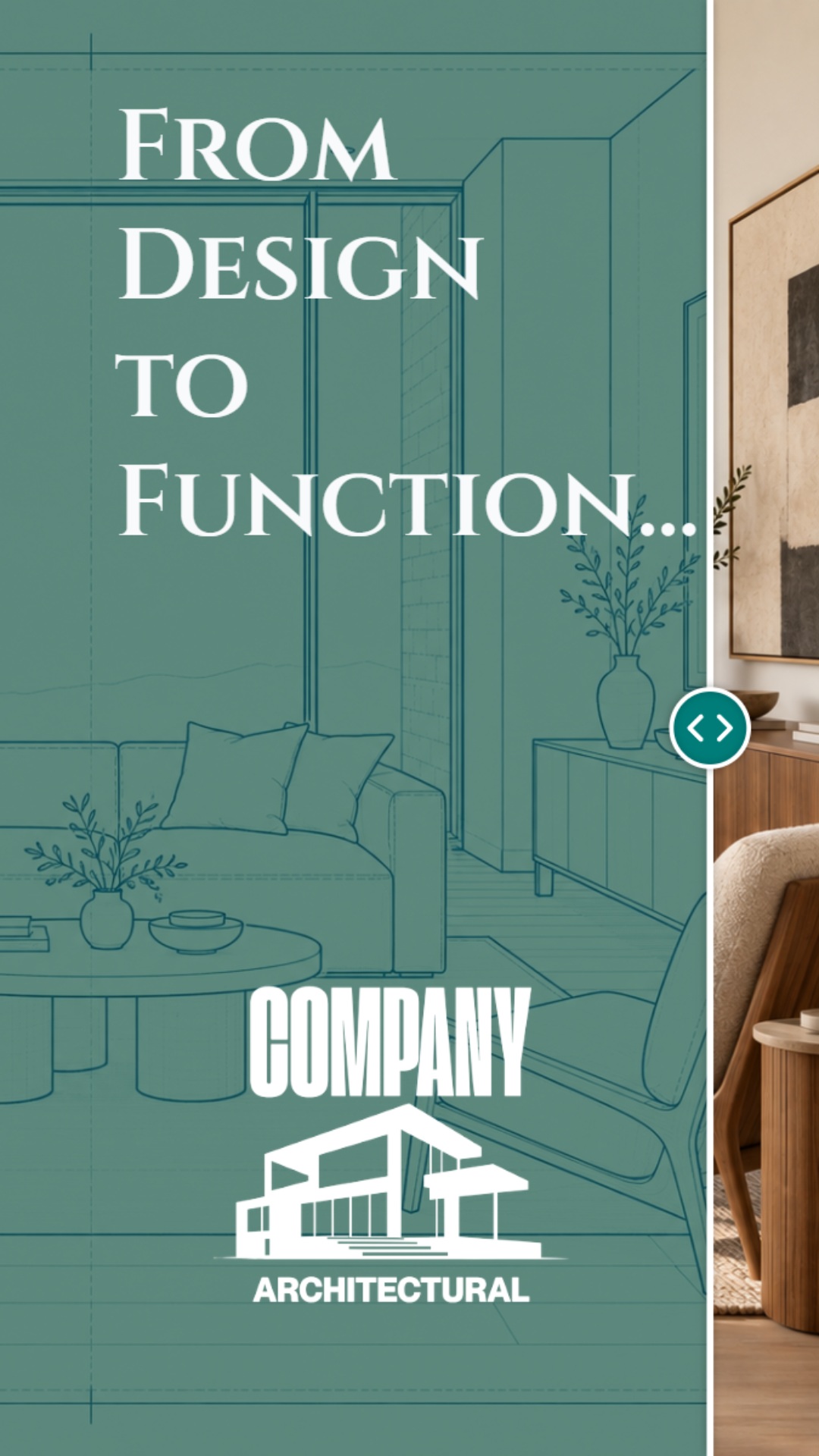
Big Reveal
From the first idea to the finished space. Watch the transformation unfold.
QUICK STYLES / FINISHED REELS, READY FOR YOUR MEDIA
Featured Quick Reels
See something you like? Add your media and make it yours.
How Do Quick Reels Work?
Find a demo you like. Use our Media Updater to swap in your own pictures and videos. Simple, fast, and fun!
Loading published Quick Styles…
HOW QUICK STYLES WORK
From their demo to your reel. In minutes.
Start with Over Under. It plays one video above another with a message between them. Keep that layout and replace the two example clips with your own.
Replace the Demo Media
Choose a top video and a bottom video.
Style Media Updater
Swap In Your ClipsReplace the demo videos. Keep the layout and timing.
Choose From
Your Media Positions
Choose one clip for each spot.
1
Top VideoCafé latte · Example frame
2
Bottom VideoFriends at brunch · Example frame
Preview After the SwapBrunch Vibes ☕
Your two clips play together
Two videos in. One reel out.
Add your message, preview, then create your reel.
Create My Reel ↗Add your message, preview, then create your reel.
Choose a Demo
Watch a finished reel and pick the look you like.
Add Your Two Clips
Choose a top video and a bottom video, then write your message.
Preview and Share
Check your reel, then export or refine it in Creator Canvas.
Quick Styles / More Ways To Make It Yours
Same starting point.
A different feeling.
See Slice Reveal in action. Explore more styles in the creator.
Featured Quick Style
Slice Reveal
A little anticipation. A fresh reveal. See Slice Reveal bring the moment to life in widescreen.
More Styles In The Creator
Creator Canvas / More Creative Control
Make a reel.
See it take shape.
One photo is enough to begin. Use the controls to move closer to the moment, then adjust the look as you go.
- Set the motion. Zoom in on what matters, then ease back out.
- Find your look. Adjust brightness, contrast, and saturation.
- Make it yours. Add your message, branding, and sound in the creator.
Interactive preview. No reel is created or exported here.
 Your Photo
Zoom In & Out
Bring The Moment Closer
Start with the whole photo, move closer to their faces, then ease back out.
Slide to try the close-up. Press play to see the full move.
Hold the full image before the motion begins.
Play MeIllustrative Preview
Adjust the sliders, then press Play Me.
Magic Photo / A Fresh Starting Point
Keep the moment.
Change the look.
Give a familiar photo a different presentation. Magic Photo creates a separate AI-assisted variation, leaving your original untouched.
Try a new image style, explore a different mood, then make something of it.
Explore Magic Photo ↗Optional AI image creation - not required to make a reel.


The comparison images could not load. Please refresh and try again.
Beyond Simple Photo Motion
A little motion.
Or a whole new possibility.
Reveal a detail. Bring clips together. Add your identity. Start easy, then explore when an idea calls for more.
Shot Builder / More From Every Image
1 Image.
3 Reels.
Fast & Fun.
Create awesome reels with the images you already have. Pick a wide view, a vertical detail, or a different angle - all from one photo.
Choose horizontal or vertical frames. Turn each frame into its own reel, with its own motion and message.
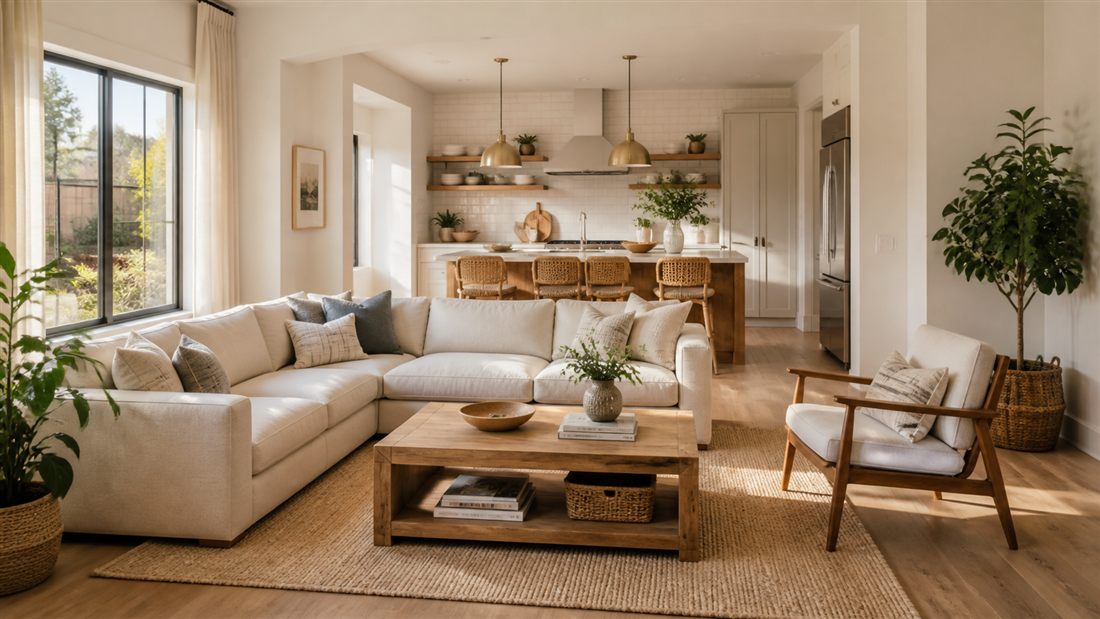 1Horizontal2Vertical3VerticalOne Original Photo
Three frames. Three reel ideas. Illustrative preview - not an export.
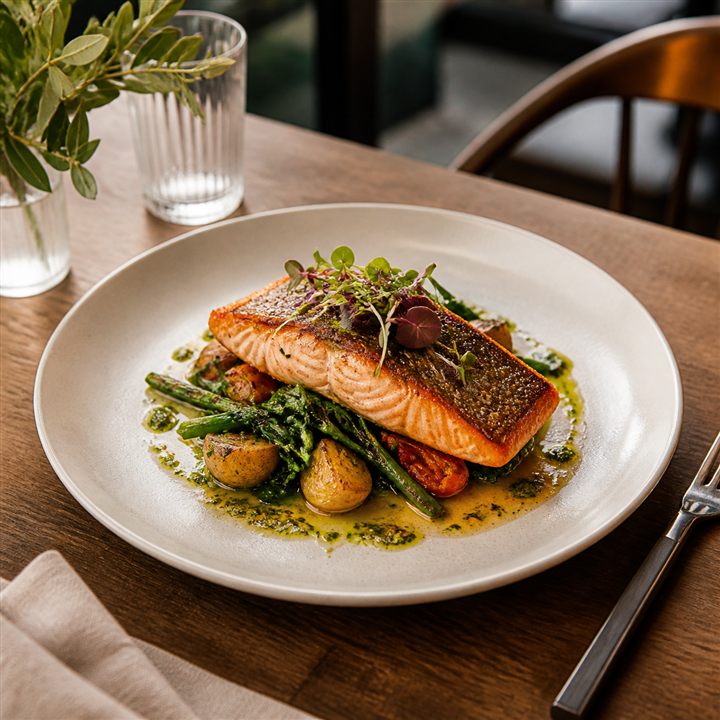

Tasty Food Co.Something Good
is on the menu.MADE WITH A LITTLE PERSONALITY.
is on the menu.MADE WITH A LITTLE PERSONALITY.
Live Preview
Try Your Brand
Type below and watch the preview change.
2. Pick A ColorSample logo: Tasty Food Co.
Your changes stay on this page.
THE PART THAT MAKES IT YOURS.
Make a reel.
Keep your identity.
Your logo, your message, your sound. Reusable brand assets help your next reel feel connected to the last one.
- Add your logo and brand elements.
- Use text to give the moment context.
- Bring music or a voiceover into the story.
- Keep reusable assets ready for next time.
Branding illustration. No account, upload, or export is created here.
CHOOSE THE RESULT. THEN THE TOOL.
What Would You
like to make?
Start with Quick Styles or Quick Reel. Explore the other tools when your idea needs something different.
01Quick Styles
Pick a look. Make a reel.+
Start with your photo or clips and choose a ready-made motion style. Watch Big Reveal above, with more styles to discover in the creator.
YOUR MEDIA → YOUR STYLE → YOUR REEL02Quick Reel
Give one photo a new way to move.+
Choose a focused style, add a message, and create a reel from a photo or short clip.
ONE PHOTO → ONE REEL03Shot Builder
Find several stories in one image.+
Choose horizontal or vertical frames from one photo. Develop each frame into its own reel with its own motion and message.
ONE IMAGE → MULTIPLE REELS04Quick Stitch
Bring your short clips together.+
Combine a small set of clips, adjust timing and transitions, and apply your branding across the sequence.
SHORT CLIPS → ONE STORY05Subject Depth
Add another layer of possibility.+
Separate the subject from its background for layered motion. A more hands-on tool for a special image.
SUBJECT + BACKGROUND → DEPTH06Magic Photo
Explore a different look.+
Create a separate AI-assisted photo variation as a new starting point. Your original stays unchanged.
ORIGINAL → OPTIONAL VARIATIONWhy MakeAReel
Three good tools.
Different starting points.
Canva and CapCut can make reels, too. The reason to choose MakeAReel is focus: turn the pictures and clips you already have into the reel you want to share.
MakeAReel / Photo To Reel
“I have the pictures.
Let’s make a reel.”
A focused path from existing media to motion, message, and a shareable MP4.
- Start With
- Your pictures or short clips.
- Shape The Result With
- Styles, Guided Quick Styler, focus points, text, branding, and audio.
- Choose It When
- You want to make more of what you already captured, with a purpose-built reel workflow.
CANVA / DESIGN & VIDEO
“I Want To Design
the whole campaign.”
A broad visual-design workspace that also creates videos and photo-based reels.
- Start With
- A design, template, or your own media.
- Shape The Result With
- Layouts, text, graphics, video templates, animation, and transitions.
- Choose It When
- You want reels alongside presentations, social graphics, and other visual formats.
CapCut / Video Editing
“I Want To Fine-tune
the edit.”
A video-editing workspace for shaping clips, effects, sound, and movement.
- Start With
- Your video clips, images, or a template.
- Shape The Result With
- Timeline editing, effects, transitions, audio, and keyframe control.
- Choose It When
- You want hands-on control over the timing and details of a video edit.
Different starting points, overlapping capabilities. This is a workflow comparison - not a claim that one tool is always better, faster, or easier for everyone.
Simple Pricing
Start simple.
Add a little Magic.
A straightforward starting point for reels, with optional Magic Photo when you want to explore something new.
FREE
$0
Explore the creator. Make your first reel.
- Quick Reel, Shot Builder, and Quick Stitch.
- Create and preview with your own media.
- Export MP4s with a MakeAReel watermark.
CREATOR
$9 / Month
Make it part of your routine.
- Everything In Free
- Clean Exports, No Watermark
- Saved Brand Kit And Audio
- Quick Stitch Exports Up To 30S
- 2 Magic Photos Per Month
CREATOR + MAGIC
$12 / Month
More room to reimagine.
- Everything In Creator
- 20 Magic Photos Per Month
- Create Separate AI Photo Variations
USD per month. Choose your plan securely through MakeAReel Account.
THE THINGS YOU MIGHT BE WONDERING.
A few answers.
Then back to making.
Do I need video-editing experience?+
No. Start with a photo or short clips, then make focused choices about movement, text, branding, and sound. There are more hands-on tools when you want to explore further.
Can I use my own photos and clips?+
Yes. Your own media is the starting point. The examples on this page use prepared marketing assets so you can see the possibilities before opening the creator.
Does every reel use AI?+
No. The core reel tools work with your existing media. Magic Photo is a separate, optional way to create an AI-assisted image variation.
Can I create on my phone?+
This website works on mobile. The creator is currently designed for desktop, where there is space for precise framing, layers, and export controls.
Can I sign up now?+
Yes. Choose a Quick Style, then sign in or create your account with a secure email link when you are ready to make it yours.
YOU ALREADY HAVE SOMETHING TO SHARE.
Let’s Make
something of it.
Your photos. Your brand. A new reason to show up.